


Linux Workstation Hardening: Enhancing Security with UFW
Master UFW and Kernel Hardening to Fortify Your Linux Workstation Against Threats


In this task, I examined the existing permissions on the file system within the projects directory and determined whether they matched the intended authorization settings.
If the permissions didn’t match the expected configuration, I modified them to authorize the appropriate users and remove any unauthorized access.
To check the current file permissions in the projects directory, I used the following command:
ls -la
ls command lists the contents of the directory — including project files and a folder called drafts.-l option displays detailed information such as ownership and permissions.-a option shows hidden files (those starting with a dot .).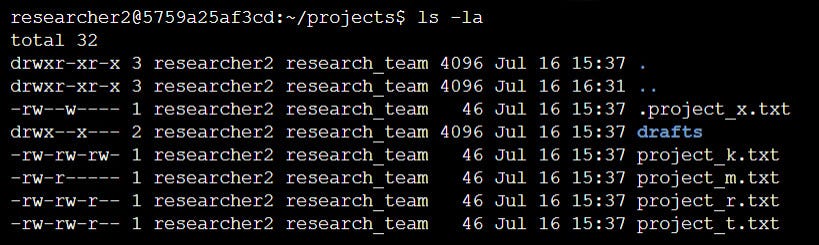
In this case, I discovered a hidden file named .project_x.txt.
Each line of the ls -l output starts with a string indicating the file type and its permissions. Here’s how to read it:
The first character indicates the type:
- for a filed for a directoryThe next nine characters are divided into three groups:
Permission Characters Meaning:
r Read permissionw Write permissionx Execute permission- Permission not grantedIt was determined that other users should not have write permissions.
One file, project_k.txt, incorrectly allowed write access to others.
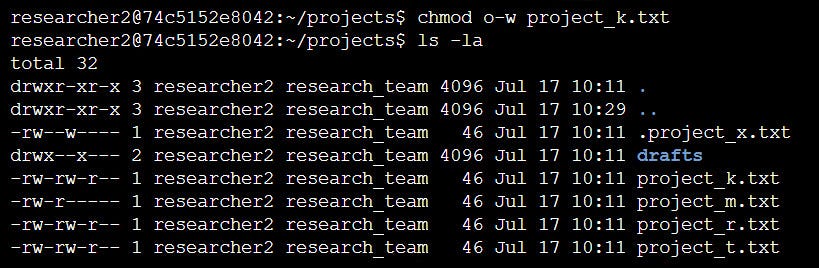
To fix this, I ran:
chmod o-w project_k.txt
chmod modifies permissions.o-w removes write permissions from “others”.project_k.txt is the target file.To confirm the changes, I ran ls -la again and verified that the write permission was removed.
The file .project_x.txt was archived by the research team as a hidden file. It was requested that no one should have write permissions, and the user and group should have read permissions.
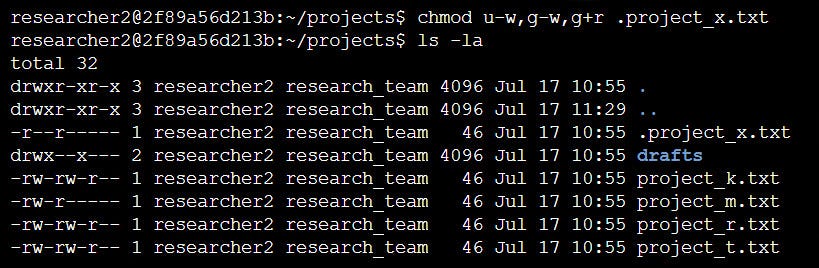
To achieve this, I ran:
chmod u-w,g-w,g+r .project_x.txt
This command:
u-w)g-w)g+r)The drafts folder should only be accessible by the researcher2 user. Specifically, only researcher2 should have execute permissions.
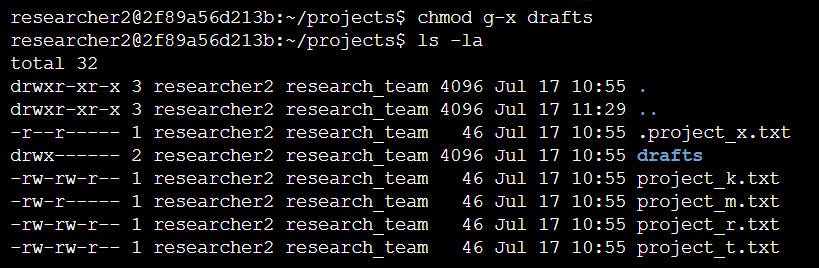
researcher2 user already had execute permissions, so no changes were needed there.To update group permissions:
chmod g-x drafts
This removed the execute permission for the group, restricting access to the directory contents and not allowing to execute files within.
This task involved analyzing and modifying file and directory permissions to match the organization’s access control policies.
chmod command was used to modify user, group, and other permissions.ls -la command helped verify permissions before and after changes.Master UFW and Kernel Hardening to Fortify Your Linux Workstation Against Threats
All the Ways to Disable Bluetooth for Good